#1. Recap: How GTM Sends Event Data
To quickly refresh from Part 1:
- Trigger detects a user action (click, form submission, page view, etc.).
- Tag fires to send event data to your chosen platform(s).
- Variable stores extra details about the event (e.g., page URL, button text).
The magic lies in how you configure these three building blocks.
#2. A Closer Look at Tags, Triggers & Variables
Tags - Your Data Messengers
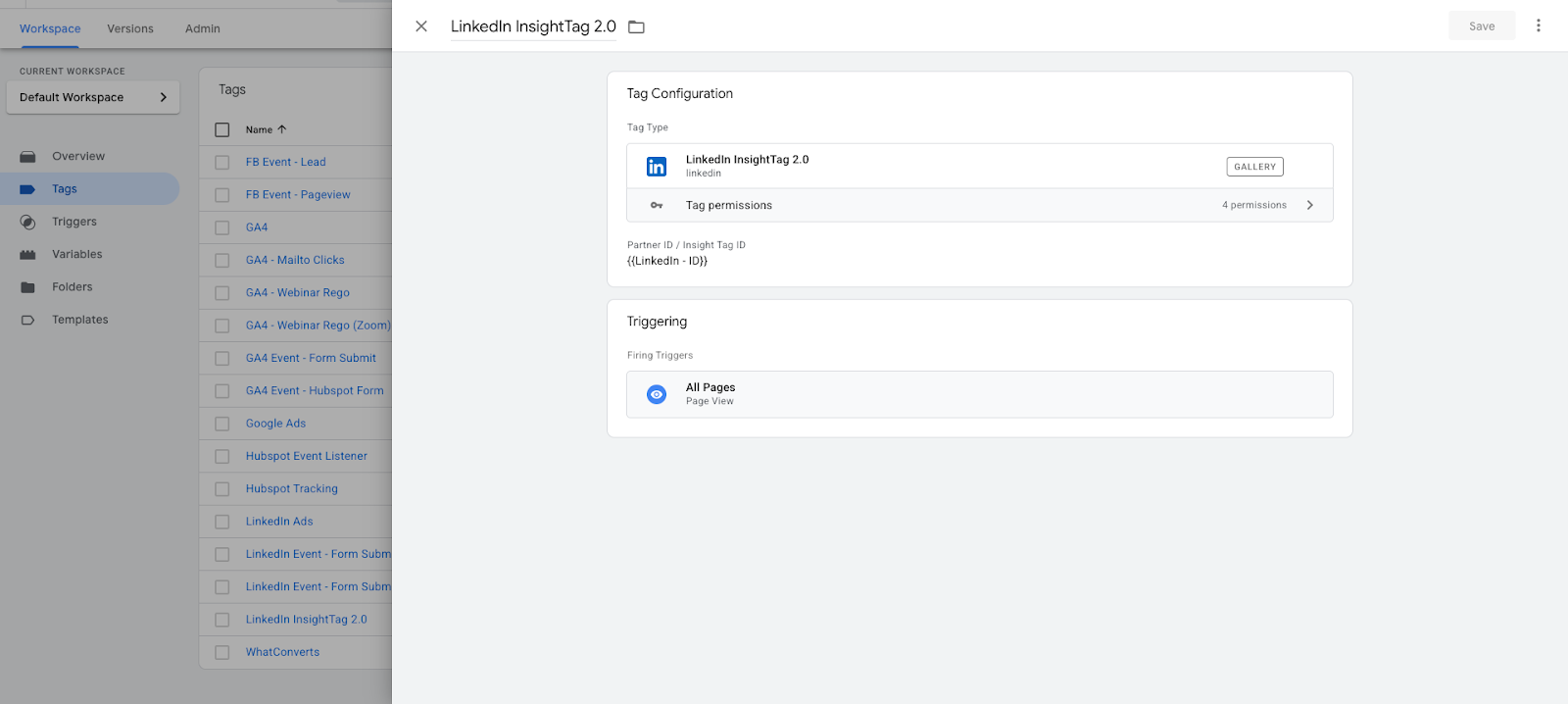
Tags are the “senders” of information. Examples include:
- GA4 Event Tag (sends event to GA4).
- Google Ads Conversion Tag.
- LinkedIn Insight Tag.
In Part 2, you’ll also want to:
- Use naming conventions - e.g., GA4 - Event - Contact Form Submit.
- Keep tags grouped logically - don’t let 50 random tag names clog your list.
If you need a refresher on how the core pieces fit together, grab the One-Page GTM Quick Reference - it’s a perfect desk-side cheat sheet.
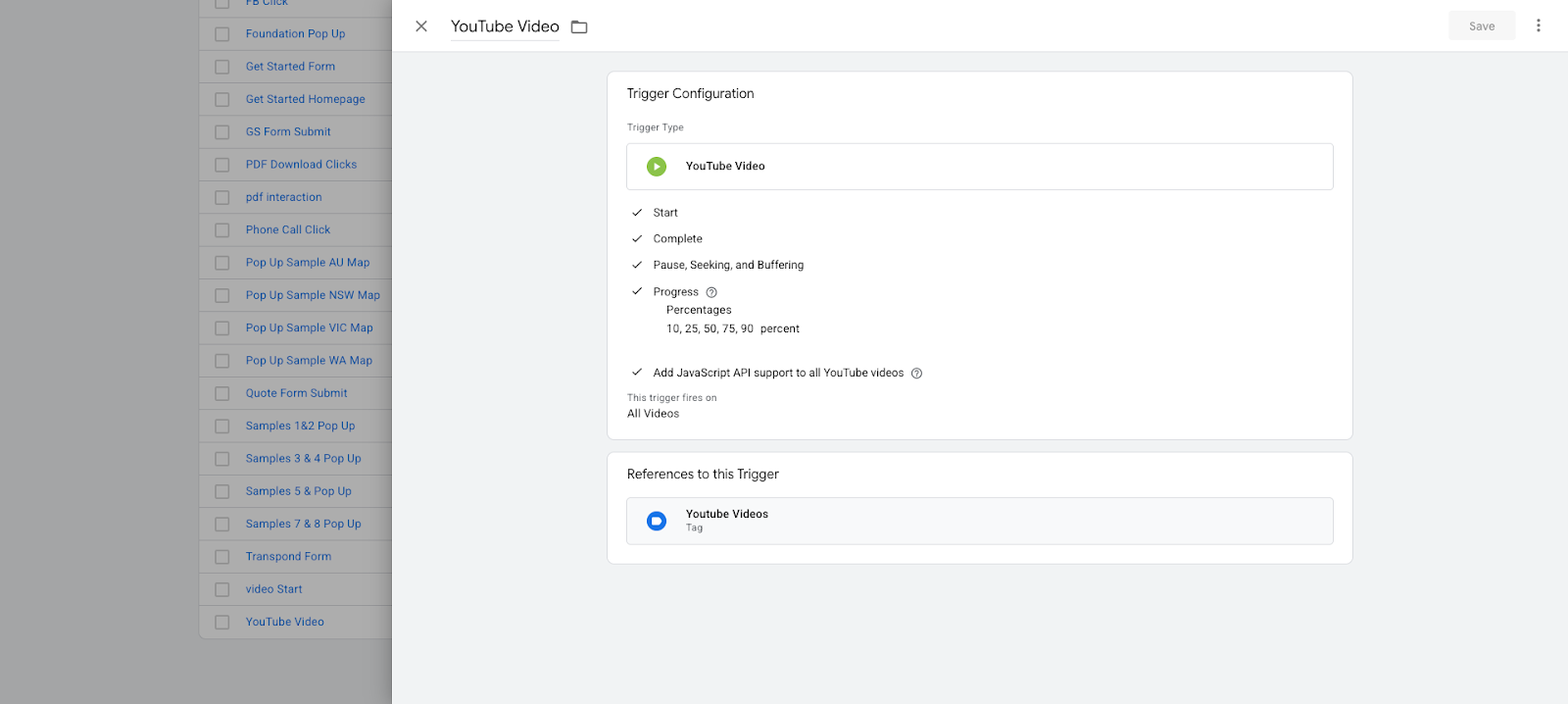
Triggers - Your Event Conditions
Triggers decide when tags fire. You can go beyond “Click” triggers by using:
- Scroll Depth Trigger - Fires when a user scrolls a set % down a page.
- Form Submission Trigger - Perfect for lead capture tracking.
- YouTube Video Trigger - Tracks plays, pauses, and completions.
- Page View Trigger - For tracking visits to specific pages.
Pro tip: Combine multiple conditions with “AND” logic for precision tracking.
Variables - Your Event Details
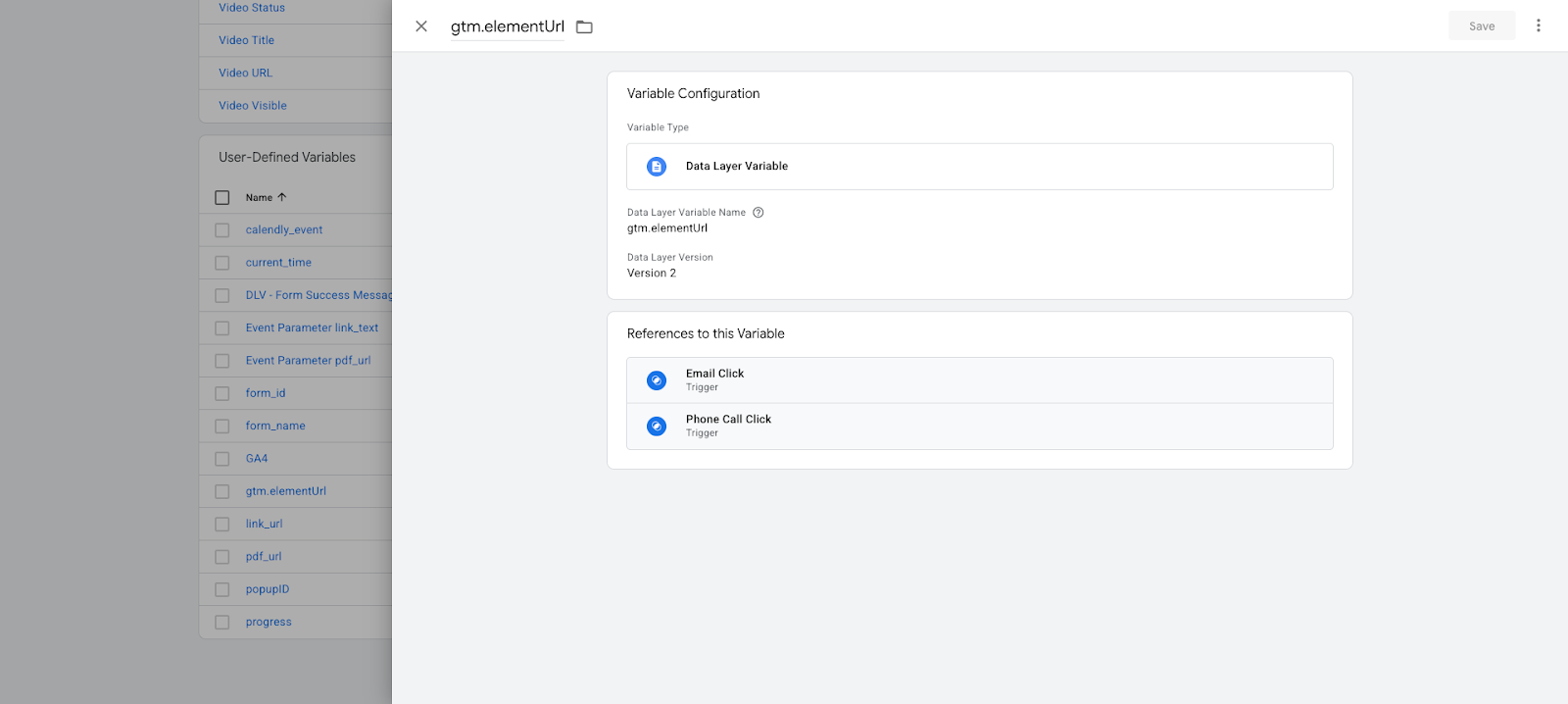
Variables add context. For example:
- Click Text - The button label clicked.
- Click URL - Where the link points.
- Page Path - The page where the click happened.
Advanced tip: You can create Custom JavaScript Variables to extract highly specific information (e.g., product SKU from a page).
#3. Adding Event Parameters for Richer Data in GA4
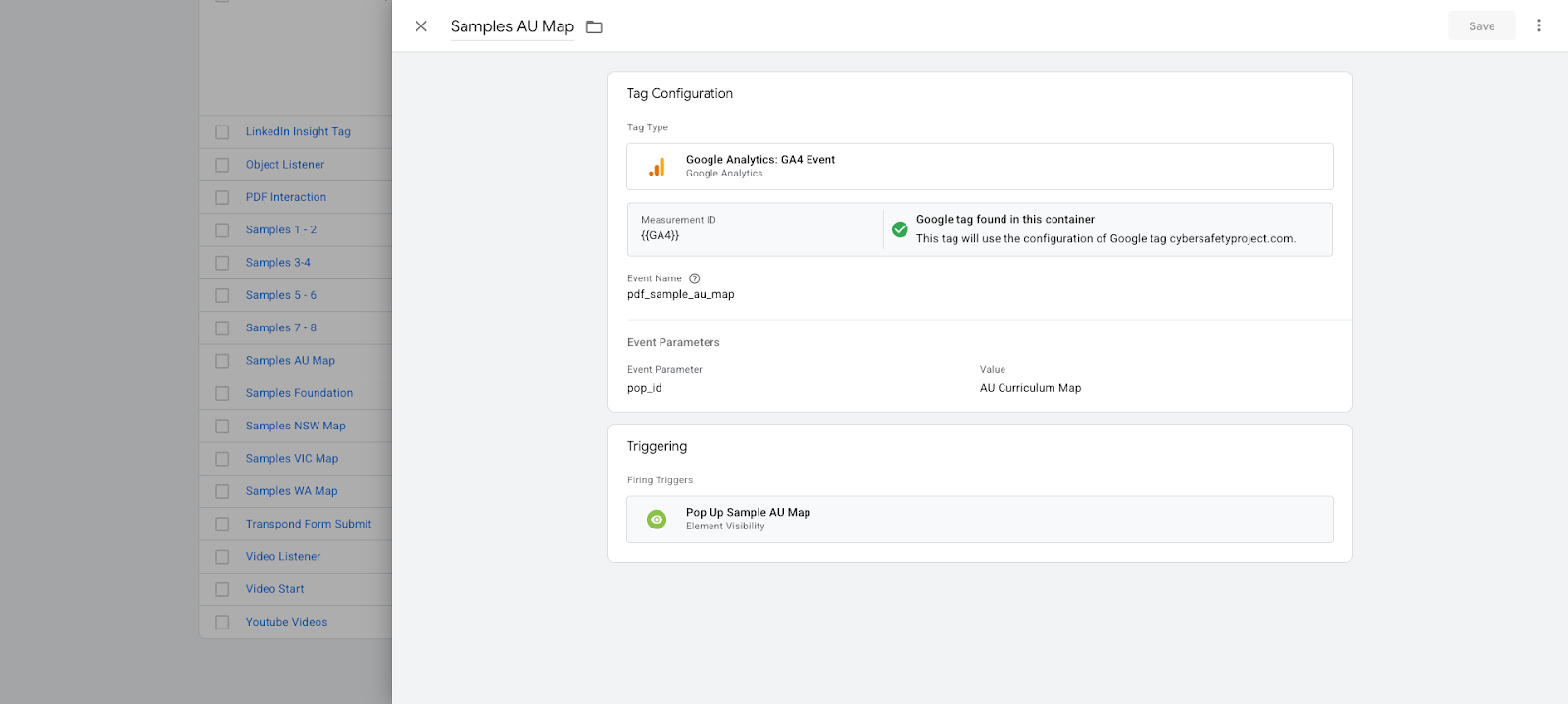
When sending events to GA4, don’t just send the event name - include parameters for better analysis.
Example:
- Event Name: download
- Parameters:
- file_name: {{Click Text}}
- file_url: {{Click URL}}
- file_name: {{Click Text}}
This lets you see not just how many downloads happened, but exactly which files were downloaded.
When adding parameters, it helps to document them. Use our Event Tracking Spreadsheet Template to record event names, parameters, and the platforms they’re sent to.
#4. Advanced Event Examples
Example 1: Scroll Depth Tracking
- Trigger: Scroll Depth → Vertical Scroll Depths → 25%, 50%, 75%, 100%.
- Tag: GA4 Event with event name scroll_depth and parameter scroll_percent.
Example 2: Form Submission Tracking
- Trigger: Form Submission → Select “Some Forms” and match form ID or class.
- Tag: GA4 Event with event name form_submit and parameter form_id.
#5. Best Practices for a Clean GTM Setup
- Document everything - Keep a spreadsheet with Event Name, Trigger Type, Variables, and Destination.
- Test before publish - Always use GTM’s Preview Mode and GA4’s real-time view.
- Name consistently - Helps keep your container searchable and logical.
- Audit regularly - Remove unused tags, triggers, and variables.
Want a step-by-step checklist to follow each time you create a new event? Download the Tag Implementation Checklist so you don’t miss a single step.
#6. Common Pitfalls to Avoid
- Overcomplicating triggers when a simpler setup works.
- Forgetting to enable click or form variables before using them.
- Using vague event names like “click1” instead of nav_menu_contact_click.
To prevent these pitfalls in the long term, schedule a monthly review using our GTM Audit Template. It’ll help you spot unused tags, messy triggers, and broken variables before they cause data headaches.
#FAQs
Can I send the same GTM event to multiple platforms?
Yes - you can link the same trigger to multiple tags (e.g., GA4, Facebook Pixel, LinkedIn).
What if my trigger fires too often?
Refine your trigger conditions - for example, match only clicks on a specific class or ID.
Do I need to use Google Tag Manager with GA4?
No, but GTM makes custom tracking much easier to manage and change.
#Conclusion
This Part 2 guide takes you beyond the basics of GTM event tracking. By mastering Tags, Triggers, Variables, and event parameters, you can capture richer, more actionable data without touching your site’s core code. With a clean, well-documented GTM setup, you’ll be ready to scale your tracking strategy as your marketing evolves. Between the Quick Reference, Spreadsheet Template, Implementation Checklist, and Audit Template, you now have all the tools you need to manage GTM - from beginner basics to advanced tracking confidently.