#1. What Is Google Tag Manager?
Google Tag Manager is a free tool from Google that lets you manage all your website’s marketing and analytics tags in one place. Instead of manually adding code for every event you want to track, you can do it through GTM’s web-based interface - saving time and reducing the risk of errors.
#2. Why Use GTM for Event Tracking?
- No developer required for every change - Marketers can make updates themselves.
- Faster implementation - New tracking can be live in minutes.
- Central control - All tags are managed in one dashboard.
- Flexibility - Works with Google tools and many third-party platforms.
#3. GTM’s Core Building Blocks for Event Tracking
Understanding these three elements is key:
- Tags - The code snippets that send data (e.g., GA4 Event Tag).
- Triggers - The rules that decide when a tag fires (e.g., “Click on Contact Button”).
- Variables - Additional information the tag can use (e.g., button text, page URL).
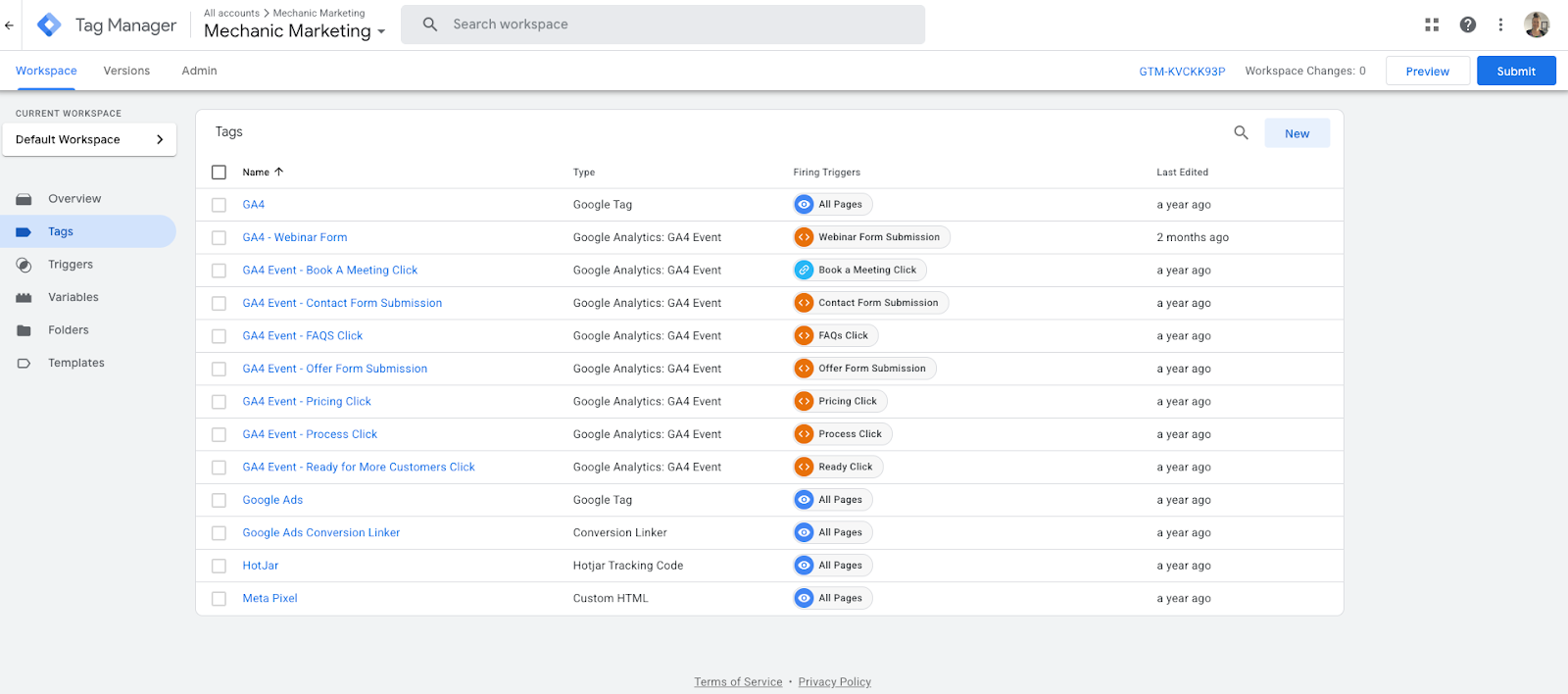
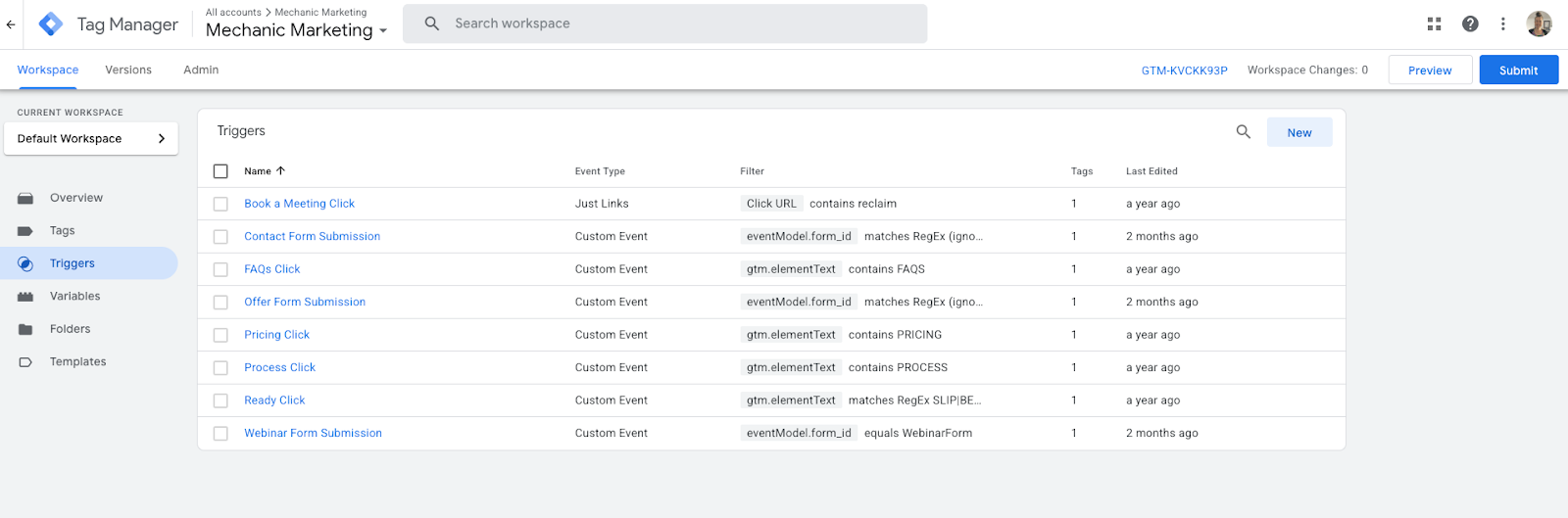
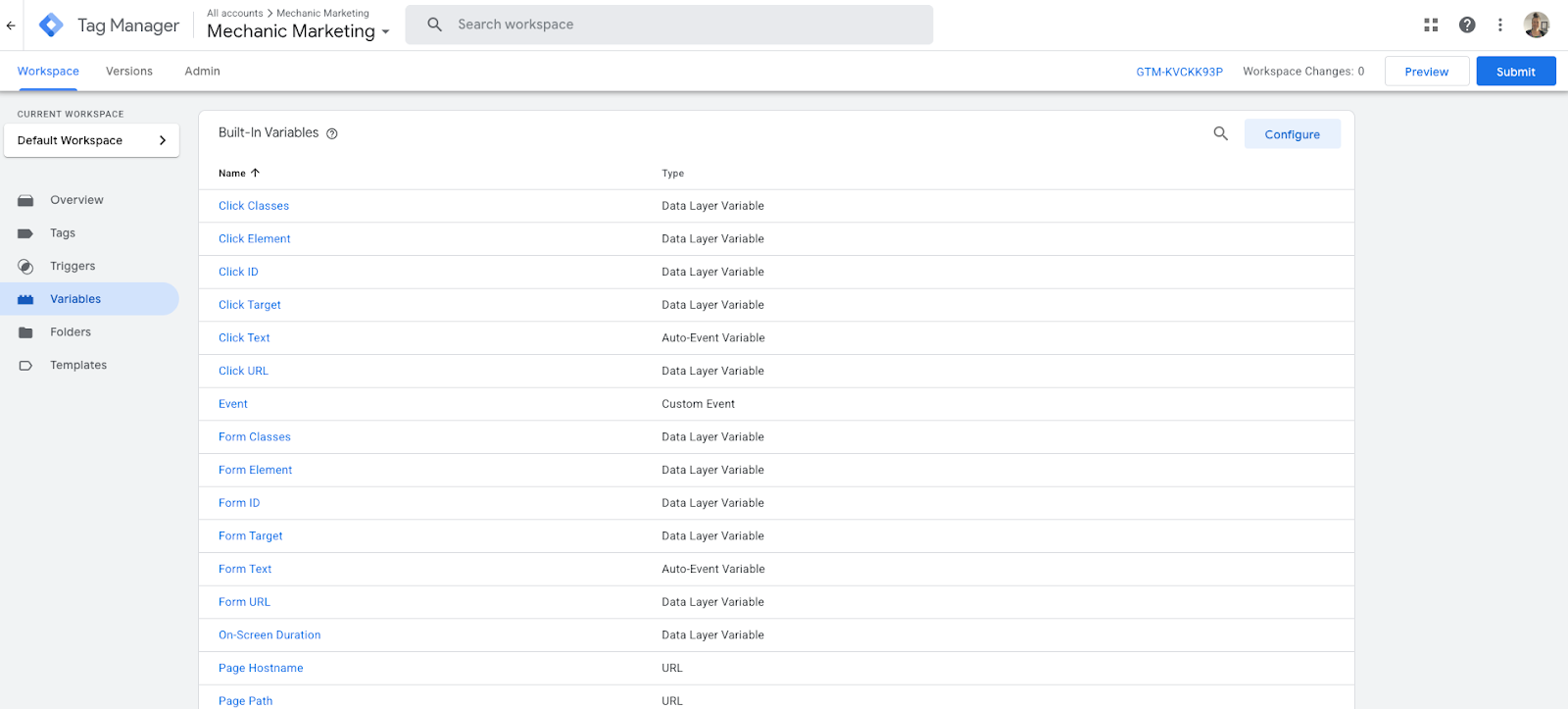
Want a simple visual to keep by your side while learning? Download our One-Page GTM Event Tracking Quick Reference - a single-page guide to how Tags, Triggers, and Variables work together.
#4. Setting Up Your First Event in GTM (Step-by-Step)
Example: Tracking a Button Click in GA4
- Log in to GTM and open your container.
Go to Triggers → click New → select Click – All Elements or Click – Just Links.
Configure the trigger to fire only on the specific button (e.g., match text or CSS selector). - Create a Tag → choose GA4 Event.
- Name your event (e.g., button_contact_click) and link it to your GA4 configuration tag.
Save the tag and trigger, then Preview your changes. - Test the event in GTM Preview Mode and GA4’s Realtime report.
- Publish when everything works correctly.
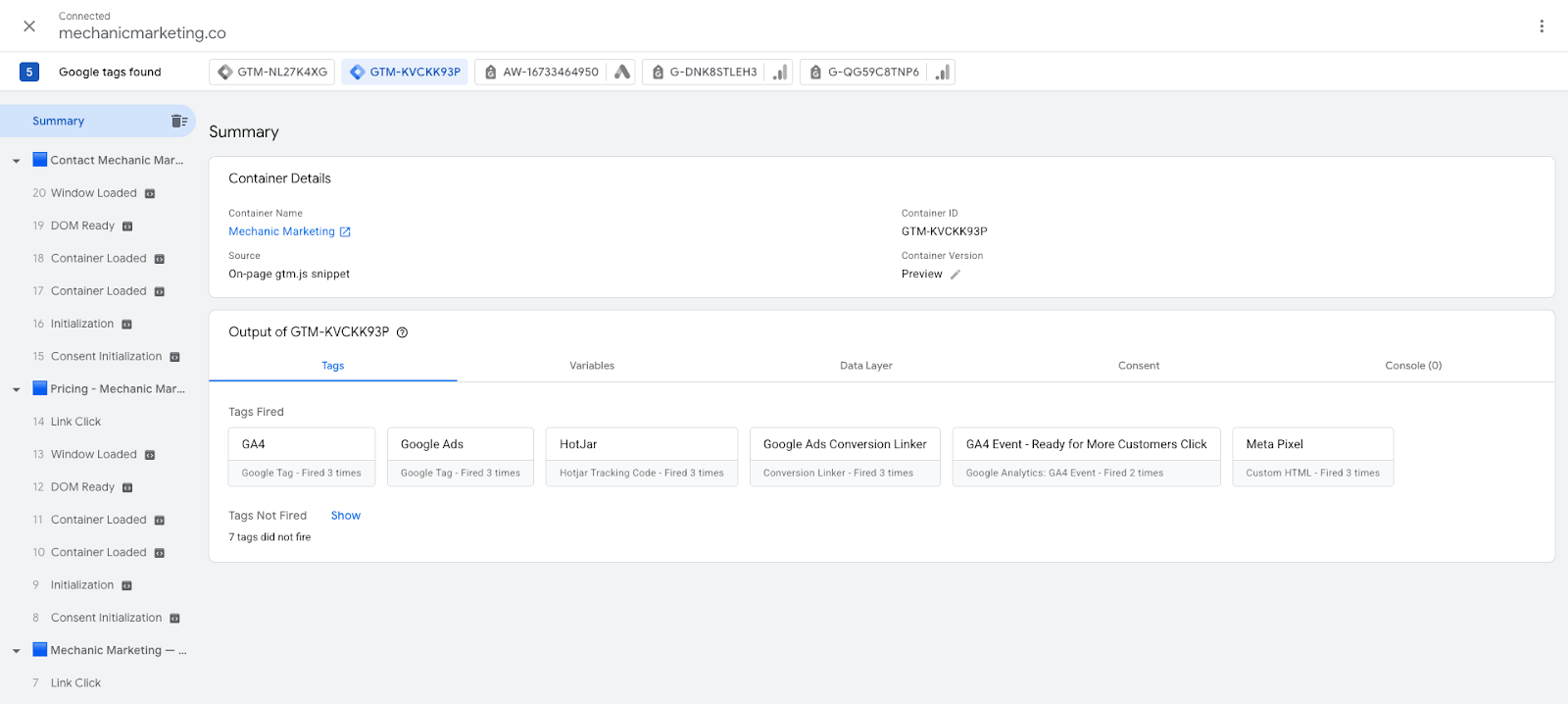
Preview Mode
To stay organised, use our free Event Tracking Spreadsheet Template. It helps you log every tag, trigger, and variable so you never lose track of what’s in your GTM container.
#5. Common Events to Track with GTM
- Button clicks (e.g., “Book Now”)
- File downloads (PDF, images, etc.)
- Form submissions
- Video plays and completions
- Scroll depth tracking
- Outbound link clicks
#6. Best Practices for GTM Event Tracking
- Name events clearly - Use descriptive, consistent naming.
- Test thoroughly - GTM Preview Mode is your safety net.
- Document your setup - Keep a simple spreadsheet of tracked events.
- Review regularly - Remove unused tags to keep GTM clean and fast.
Before publishing, run through my Tag Implementation Checklist - it’s a printable step-by-step guide to avoid the common beginner mistakes.
#FAQs
Do I need coding skills to use GTM for event tracking?
Not much - most tracking can be set up with GTM’s built-in features, though complex scenarios may require light HTML or JavaScript.
Can I track the same event in GA4 and other platforms at the same time?
Yes - GTM can send the same event to multiple tools (e.g., GA4, Facebook Pixel, LinkedIn Ads).
Is GTM free to use?
Yes - Google Tag Manager is completely free, though you may need paid third-party tools for advanced use cases.
#Conclusion
Google Tag Manager takes the hassle out of event tracking, making it easy for beginners to measure user interactions without touching website code. By learning the basics of tags, triggers, and variables - and following a solid testing process - you can unlock valuable behavioural insights that drive smarter marketing decisions. Once you’ve built a few events, keeping your GTM container tidy is critical. Our GTM Audit Template makes it easy to run quick monthly clean-ups and keep your setup reliable.”