#What Does (not set) and (unassigned) Mean in GA4?
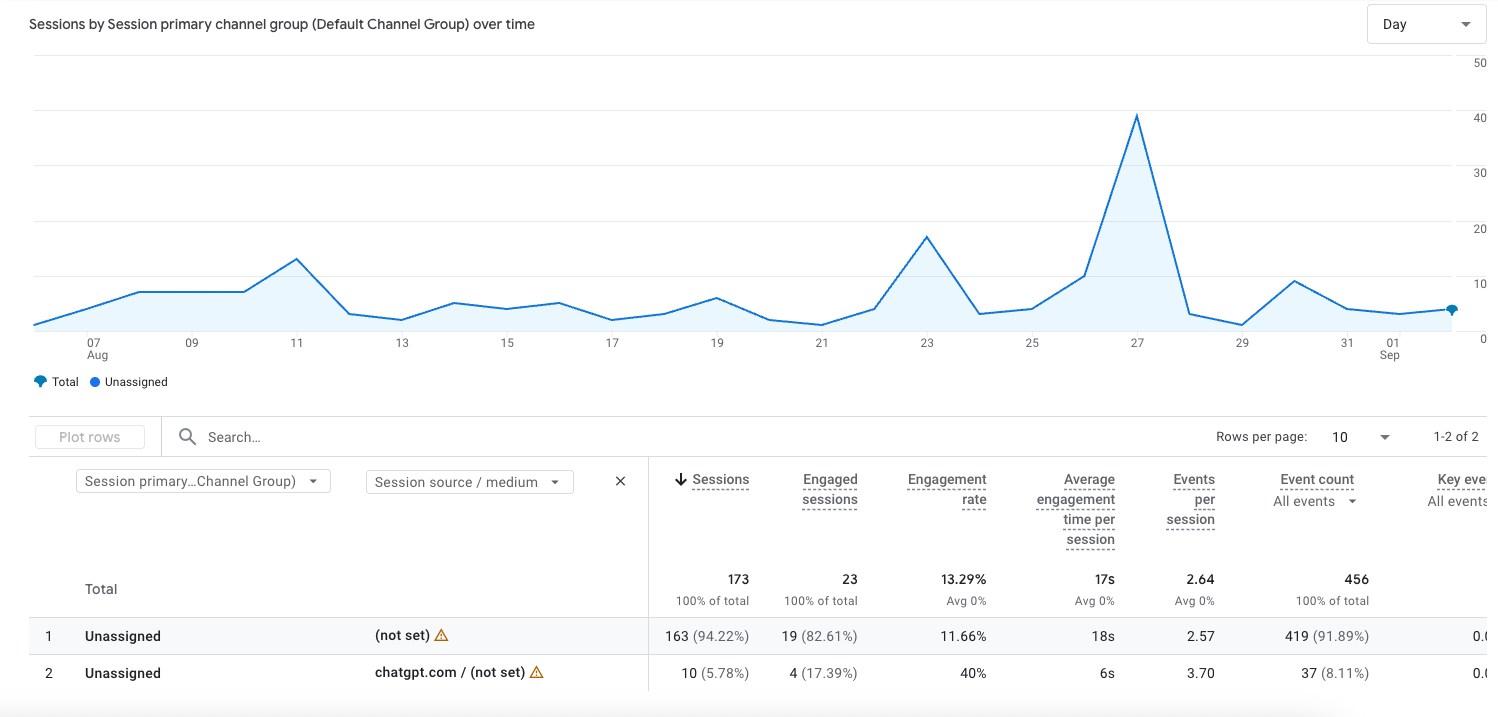
In GA4, (not set) and (unassigned) are catch-all labels.
- (not set) = Google couldn’t assign a value for a dimension (like source, medium, or page path).
- (unassigned) = GA4 couldn’t classify traffic into a default channel grouping.
These aren’t errors per se - they’re just signs that GA4 didn’t have enough info to categorise something properly.
#Why These Issues Are Getting Worse in GA4
GA4 works very differently from Universal Analytics. It’s built on events, not sessions. That means it relies heavily on clean tracking, privacy-safe setups, and correct attribution.
Add to this the rise of cookie restrictions, browser privacy updates, and user opt-outs, and it's no wonder (not set) and (unassigned) are growing.
#Top Reasons You’re Seeing (not set) and (unassigned)
1. Missing or Broken UTM Tags
If your links (especially paid ones) don’t have proper UTM tags, GA4 often can’t tell where the traffic came from - resulting in (not set) or (unassigned).
Clean, consistent UTMs are the foundation of accurate reporting. Without them, you’ll quickly run into problems that make it harder for AI to optimise your campaigns.
👉 Check out our guide on why UTMs matter and how to use them for accurate reporting for a simple explanation of how tagging affects data clarity.
Pro tip: You can also create consistent links fast with our free UTM Link Builder tool.
2. Auto-tagging Disabled in Google Ads
If you’re using Google Ads and don’t have auto-tagging enabled, GA4 may not be able to link clicks to campaigns accurately.
3. Redirects Stripping Parameters
Some websites (especially older ones) strip out UTM tags during redirects, meaning GA4 misses the data.
4. Incorrect or Missing GA4 Tags
If your GA4 tag isn’t firing properly, you’ll see gaps. Double-check that your tag setup is working in Google Tag Manager or gtag.js.
5. GA4 Setup Not Using Enhanced Measurement
Enhanced Measurement helps track scrolls, video views, and outbound clicks automatically. If it’s off, you may be missing key actions.
6. Cookie Restrictions and Privacy Laws
Modern browsers block third-party cookies, and privacy regulations like GDPR, CCPA, and iOS App Tracking Transparency limit data collection.
If a user declines cookies or uses a privacy-first browser, GA4 may not identify their session source - leading to more (not set) and (unassigned).
💡 Tip: Implement Google Consent Mode v2 to maintain partial visibility even when users decline tracking.
#Bonus: Other Reasons You Might See (not set) and (unassigned)
If you've addressed the major causes but you're still seeing these values creep in, here are some lesser-known but still important culprits to consider:
#1. Bot Traffic or Spam
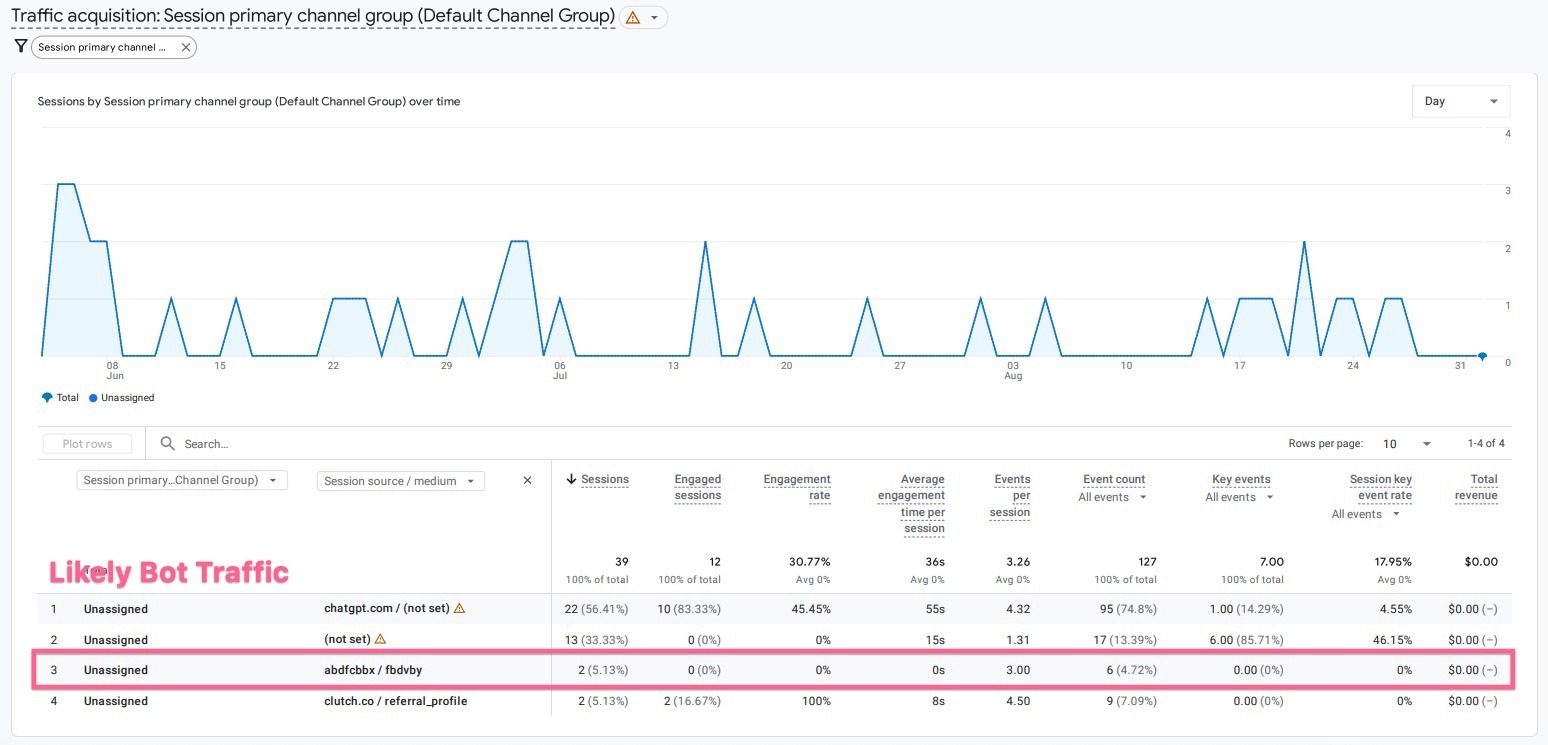
Some non-human traffic can hit your site without any referral data or proper attribution, resulting in (not set). This is especially common with bots that don’t trigger real user engagement.
Check for: Sudden spikes in low-quality traffic with 0% engagement or odd locations.
#2. Cross-Domain Tracking Not Set Up
If you have multiple domains (e.g. a booking system, checkout page, or external landing page), and GA4 isn’t set up with cross-domain tracking, the user’s source info may get lost during the handover.
Fix: Use Google Tag Manager and GA4’s recommended cross-domain configuration.
#3. App to Web Traffic
Traffic coming from apps like Instagram, Facebook, or TikTok often strips referrer data unless UTM parameters are used. This can result in (not set) in your source/medium reports.
Fix: Always use UTM tagging for links placed in apps.
#4. Direct Visits Without Context
If someone lands on your site by typing in your URL or clicking a saved bookmark and there’s no tracking info available, GA4 may log that visit as (not set), especially if cookies have expired or been blocked.
Note: This is often unavoidable but not harmful unless the volume is significant.
#5. Data Sampling or Delays in GA4
In rare cases, GA4 may delay the processing of some data, or exclude small-volume query strings from reports, especially when your property is large or complex.
Tip: Use the Page report instead of the Query report to see total clicks regardless of attribution gaps.
#How To Fix or Reduce (not set) and (unassigned)
Audit Your UTM Tags
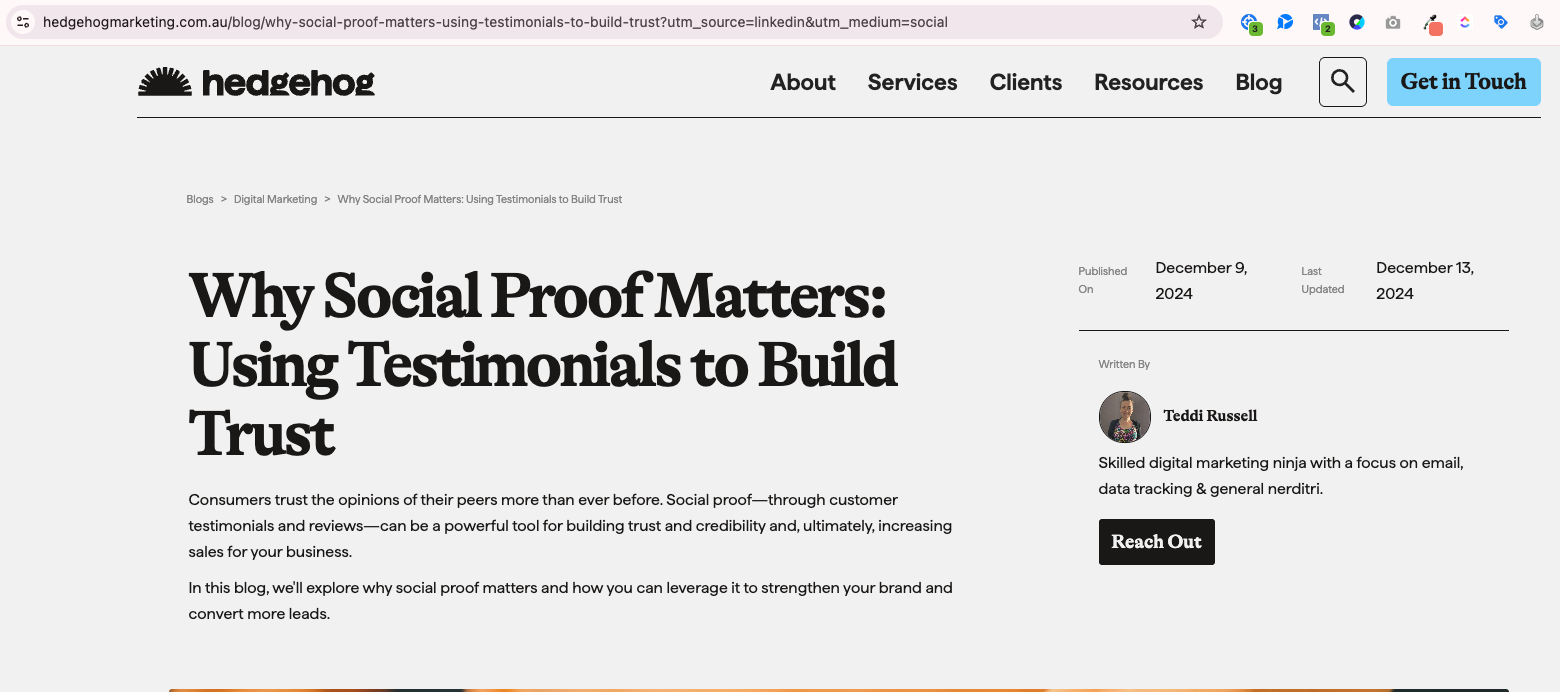
Use consistent UTM parameters for every campaign. Click through your ads to confirm URLs contain ?utm_source=.
Need a shortcut? Try our free UTM Link Builder and grab the UTM Tagging Best Practices Guide inside our GA4 & UTM Resource Pack.
Enable Auto-Tagging in Google Ads
This ensures GA4 can match clicks and campaigns.
Check for Redirects
Use tools like httpstatus.io to see if UTM tags are being stripped.
#Use GA4 DebugView
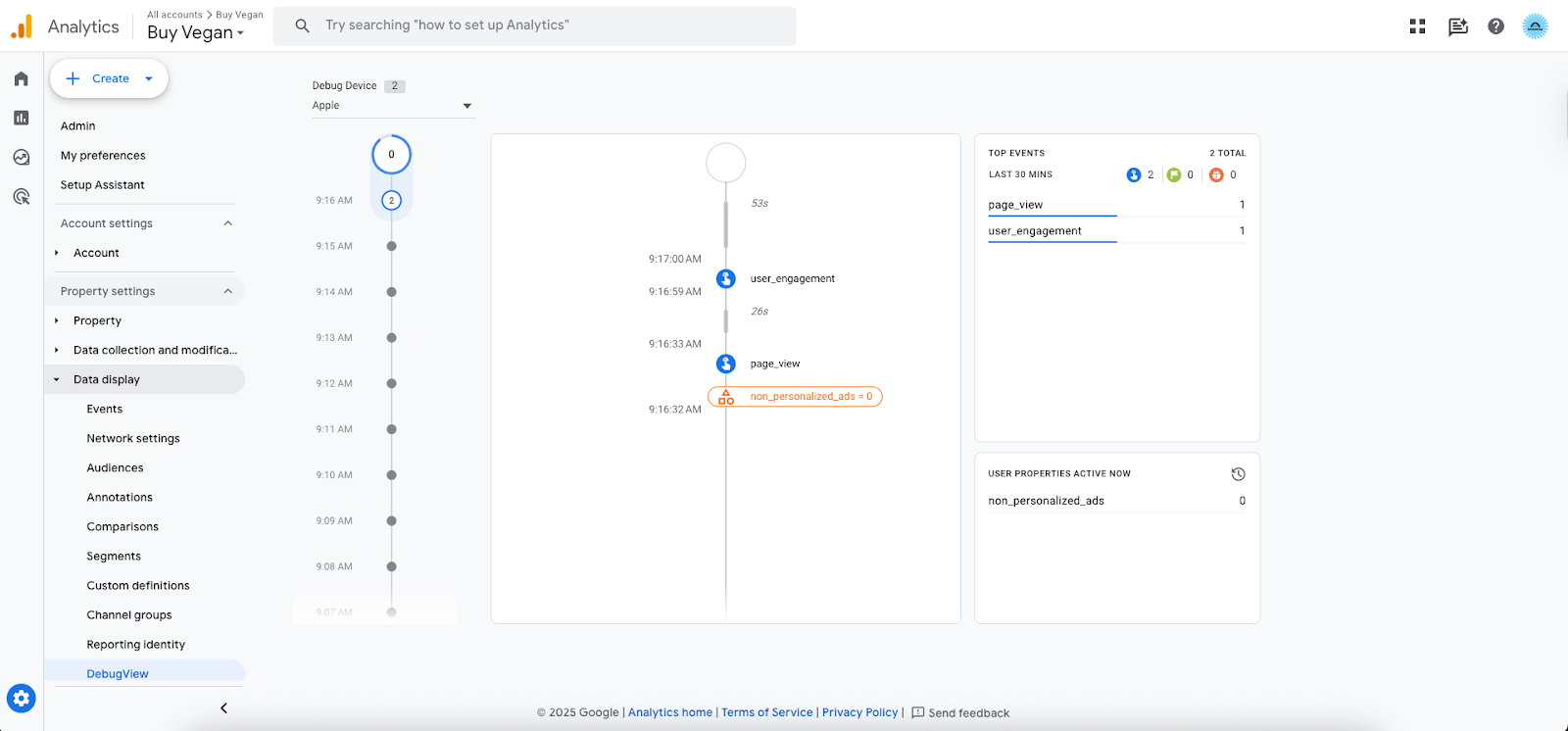
- GA4’s DebugView lets you watch tracking live and see if data is flowing correctly.
- Use the Google Tag Assistant Chrome extension or preview mode in GTM.
#Review GA4 Channel Grouping Settings
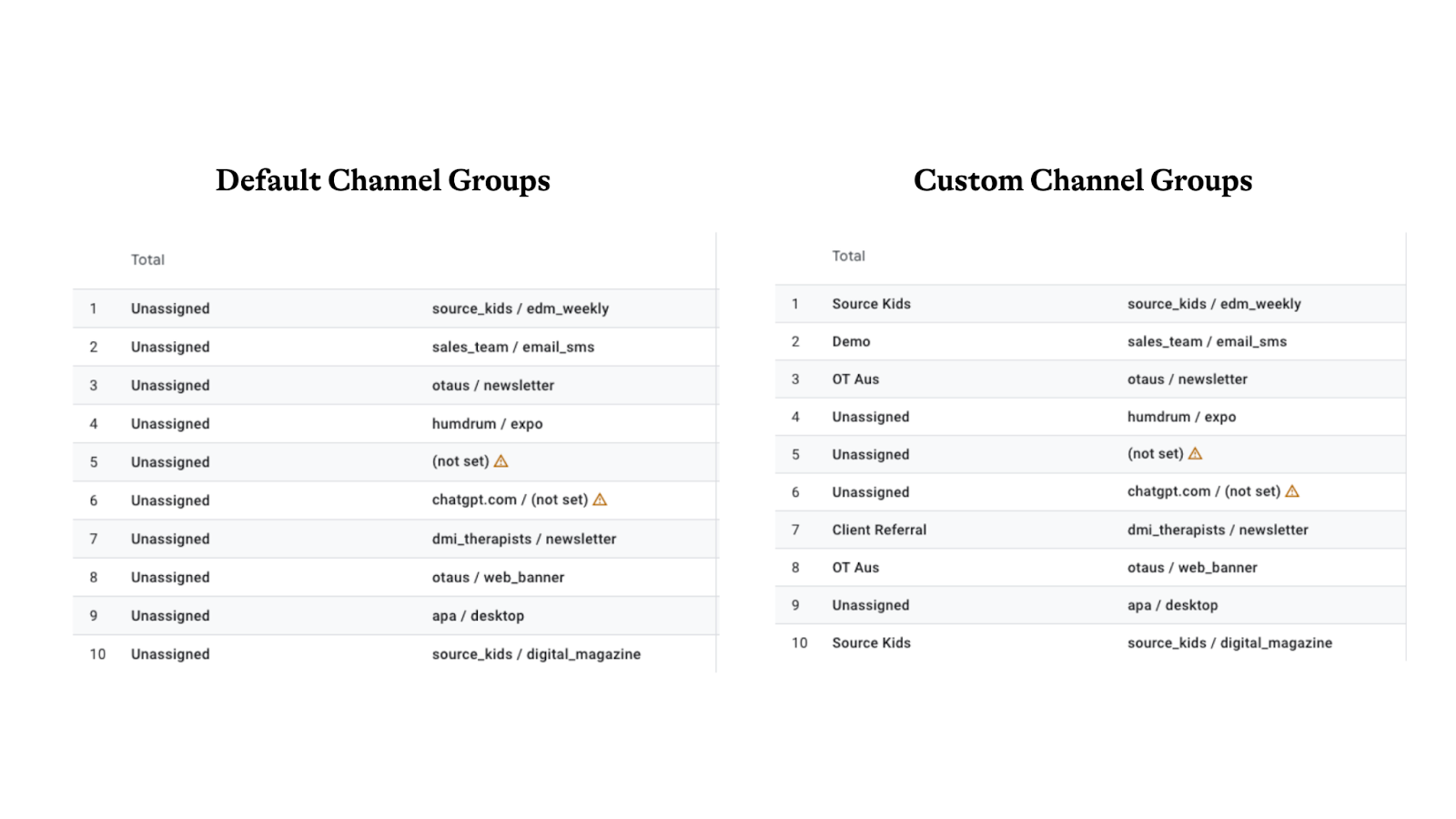
- Customise your default channel grouping to reflect your marketing setup better (if needed).
#Best Practices to Prevent Future GA4 Headaches
- Tag every marketing link with UTM parameters.
- Test your tracking regularly with DebugView.
- Use Google Tag Manager for cleaner setups.
- Train your team (or yourself!) on consistent UTM naming conventions - see our UTM tagging guide here.
- Review GA4 reports monthly to catch issues early.
#FAQs
What’s the difference between (not set) and (unassigned)?
- (not set) usually appears in dimensions such as “source”, “page path”, or “landing page”.
- (unassigned) appears in channel groupings when GA4 doesn’t know which bucket to assign traffic to.
Is (not set) bad?
Not necessarily - but it means something’s missing. The goal is to reduce it, not eliminate it.
Can I filter out (not set) from my GA4 reports?
Yes, but remember that hides the issue instead of fixing it.
Does (not set) impact reporting accuracy?
Yes. It skews your understanding of performance. Fixing it means smarter marketing decisions.
#🎁 Free GA4 & UTM Resource Pack
AI has made campaign setup faster and easier than ever - but success still depends on the details you control.
To help you keep your data clean and your campaigns on track, I’ve put together a free GA4 & UTM Resource Pack designed to help you fix (not set)/(unassigned) issues and prevent them from coming back.
#What’s Inside
UTM Tagging Best Practices Guide
A simple framework for naming and structuring your campaign tags so your data stays clean and consistent - across every channel, team, and ad platform.
GA4 Troubleshooting ChecklistYour step-by-step system to confirm GA4 is tracking correctly - from UTM setup to DebugView testing.
UTM Link Builder
Generate consistent, error-free campaign URLs in seconds. Perfect for anyone tired of manually building links in spreadsheets.
Common Causes Cheat SheetA quick-reference summary of why (not set)/(unassigned) appears in GA4 - and exactly how to fix each one.
#How to Use It
- Start with the UTM Guide to align your campaign naming.
- Use the Link Builder to create URLs for every ad, post, or email.
- Run through the GA4 Checklist to confirm accurate tracking.
- Refer to the Cheat Sheet when you see (not set) or (unassigned) in reports.
Clean data, fewer reporting headaches, and more confident optimisation - done.