#1. Why These GA4 Events Matter for Ecommerce
GA4 is designed to capture a full picture of the customer journey - from first visit to completed sale.
Two of its most valuable ecommerce events are:
- Add to cart - Shows initial product interest.
- Items purchased - Confirms a transaction was completed.
By comparing these, you can uncover where customers drop off and how to improve conversions.
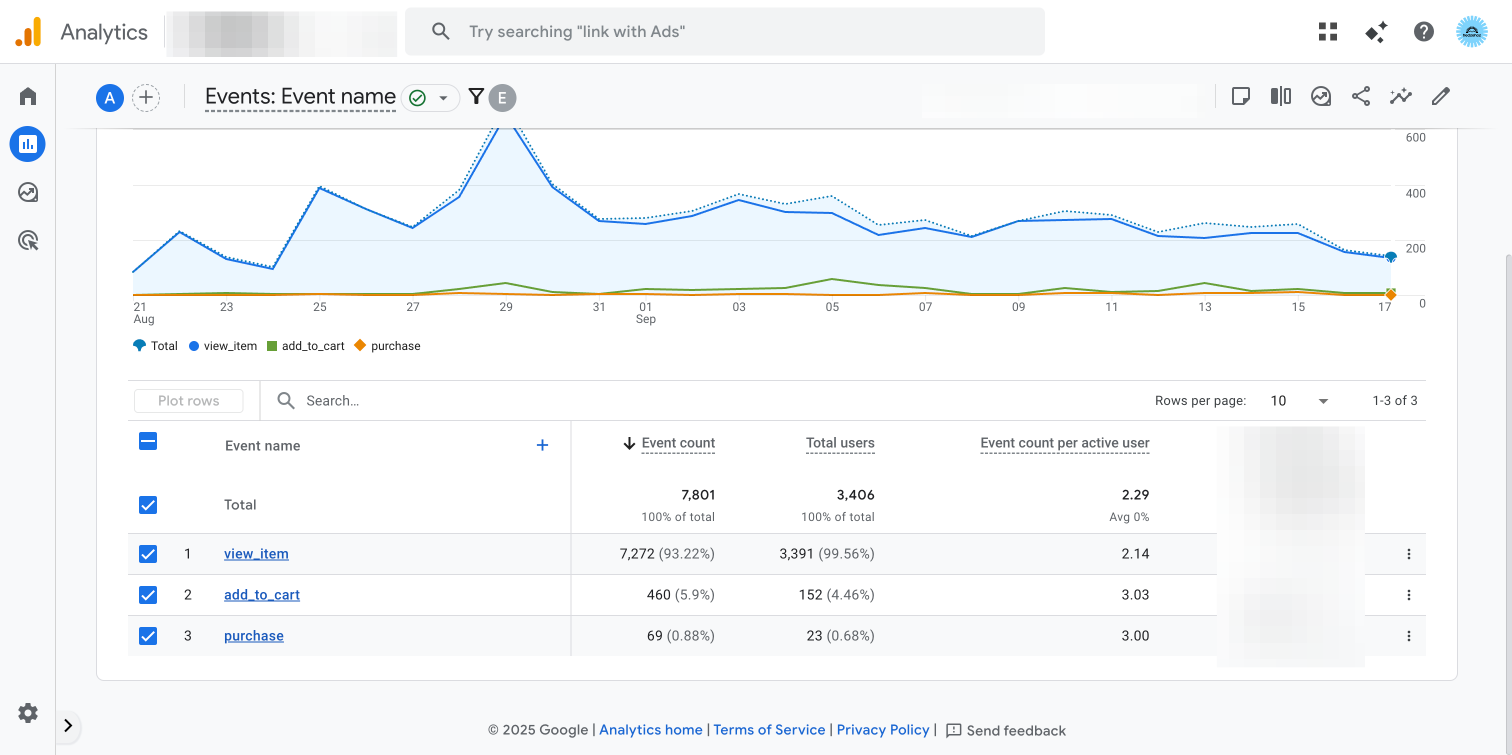
#2. When Does the Items Purchased Event Happen in GA4?
The items purchased event fires when the transaction is successfully completed. This is typically triggered:
- On the order confirmation page (post-checkout).
- After payment processing and order submission.
Why it’s important:
- Accurately measures completed sales and conversion rates.
- Allows you to see which products drive the most revenue.
- Links directly to campaign performance measurement.
#3. When Does the Add to Cart Event Happen in GA4?
The add to cart event fires as soon as a customer clicks the “Add to Cart” button. This may be on:
- Product detail pages.
- Category or search results pages (if the button appears there).
Why it’s important:
- Shows product interest before purchase.
- Helps identify popular items that may not be converting.
- Reveals potential barriers in the checkout process.
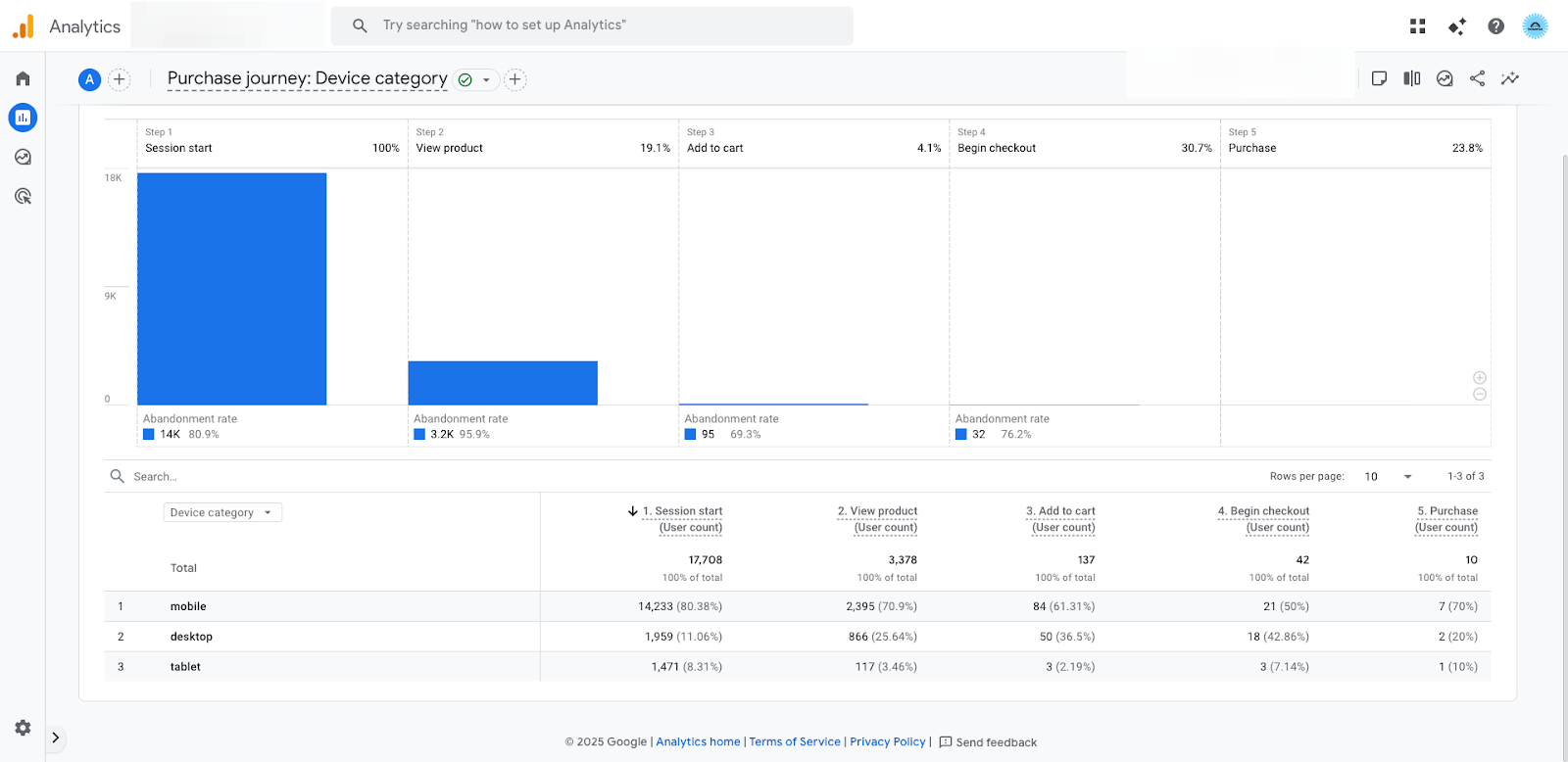
#4. Setting Up GA4 Ecommerce Event Tracking
To track these events accurately:
- Create a GA4 property - In Google Analytics, set up a property for your store.
- Enable enhanced measurement - Turn on ecommerce reporting features.
- Implement Google Tag Manager (GTM) - Install GTM on your site for easy event control.
- Configure event triggers - Set up “items purchased” and “add to cart” triggers to fire at the right moment.
- Use the Data Layer - Pass structured ecommerce data (e.g., product ID, name, price) to GA4.
- Test your setup - Use GA4 DebugView to verify events are firing correctly.
#5. Benefits of Tracking These Events in GA4
- Customer insights - Understand buying patterns and preferences.
- Sales optimisation - Spot underperforming products and improve conversion paths.
- Marketing performance - Measure campaign ROI more accurately.
- Inventory planning - Stock products based on demand trends.
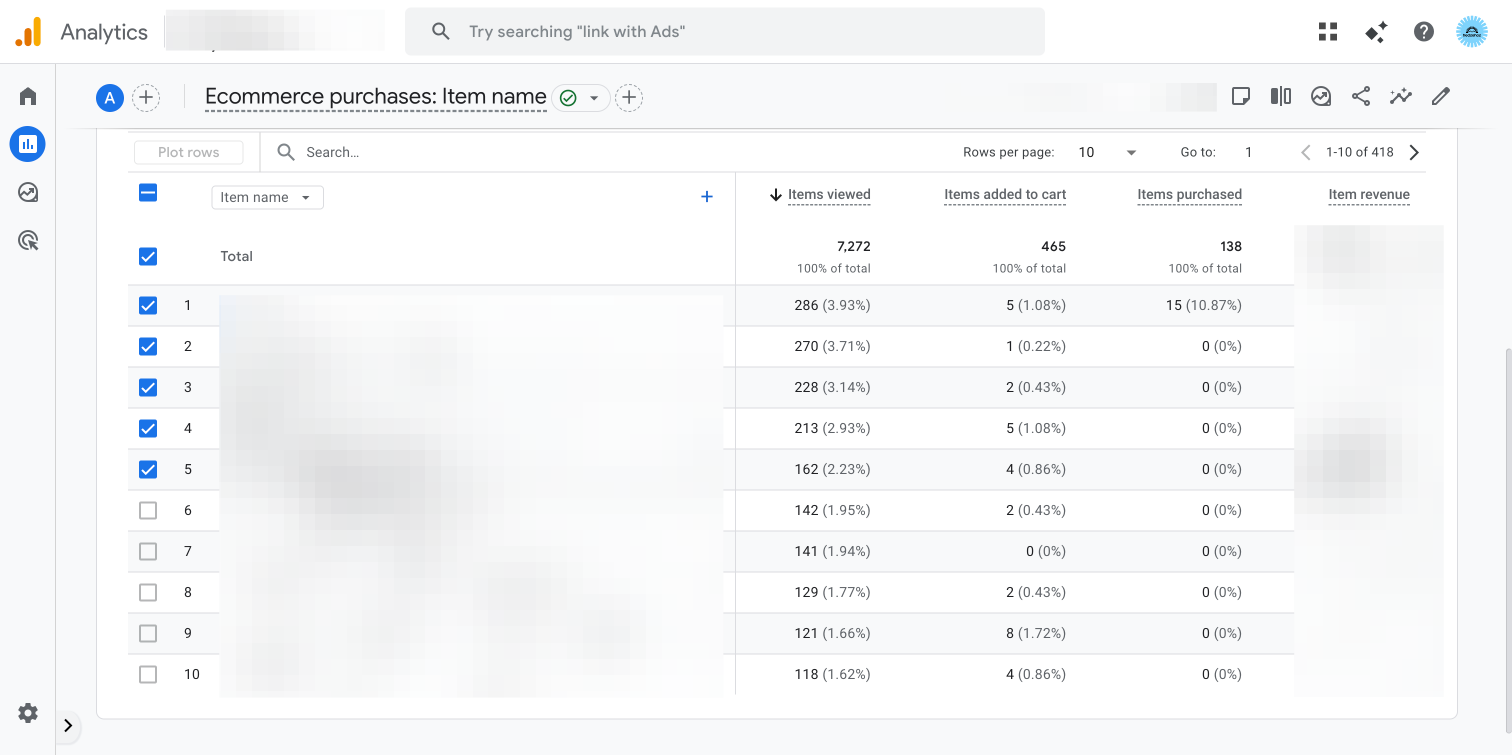
#6. Common Issues and How to Fix Them
<table style="width:100%; border-collapse: collapse; font-family: Arial, sans-serif;">
  <thead>
    <tr>
      <th style="border: 1px solid #ccc; padding: 8px; text-align: left; background: #f4f4f4;">Issue</th>
      <th style="border: 1px solid #ccc; padding: 8px; text-align: left; background: #f4f4f4;">Possible Cause</th>
      <th style="border: 1px solid #ccc; padding: 8px; text-align: left; background: #f4f4f4;">Solution</th>
    </tr>
  </thead>
  <tbody>
    <tr>
      <td style="border: 1px solid #ccc; padding: 8px;">Events not firing</td>
      <td style="border: 1px solid #ccc; padding: 8px;">Incorrect GTM trigger setup</td>
      <td style="border: 1px solid #ccc; padding: 8px;">Check trigger conditions in GTM and test in Preview Mode.</td>
    </tr>
    <tr>
      <td style="border: 1px solid #ccc; padding: 8px;">Incorrect data</td>
      <td style="border: 1px solid #ccc; padding: 8px;">Faulty data layer implementation</td>
      <td style="border: 1px solid #ccc; padding: 8px;">Verify product data is passed correctly.</td>
    </tr>
    <tr>
      <td style="border: 1px solid #ccc; padding: 8px;">Duplicate events</td>
      <td style="border: 1px solid #ccc; padding: 8px;">Multiple triggers firing for same action</td>
      <td style="border: 1px solid #ccc; padding: 8px;">Consolidate triggers or use blocking rules.</td>
    </tr>
  </tbody>
</table>
#FAQs
Q: How can I check if my GA4 ecommerce events are working?
Use GA4’s DebugView and your GTM Preview Mode to confirm events are firing at the correct time.
Q: Can I add extra details to these events?
Yes - pass parameters like product name, category, and price via the data layer for richer reporting.
Q: Why does my GA4 data look different from my store’s sales report?
Discrepancies can come from ad blockers, tracking setup errors, or differences in how refunds and cancellations are handled.
#Conclusion
Knowing when items purchased and add to cart events occur in GA4 is key to making sense of your ecommerce data. Correct setup ensures you’re working with accurate, actionable insights - helping you optimise the shopping experience, boost conversions, and grow your revenue.